Understanding the /CombatLog Command: Record, Upload, and Read Your DPS
By Attilio, who is a web developer, has played Star Trek Online since it launched, and builds and maintains STO Academy. Published . Updated .
Every serious conversation about damage in Star Trek Online eventually comes back to the same tool: the combat log. The game can write every hit, heal, miss, and kill to a plain text file, and a parser turns that file into numbers you can act on. This guide covers the whole process, from typing the command to knowing what the results are telling you. The details here are current as of Season 37 (September 2026).
Why record a log at all
Damage feels different from how it measures. A fight where everything crits feels great, and a fight where you spent ten seconds flying to the next group feels terrible, but neither feeling tells you which of your abilities is pulling its weight. A log settles it. It records who hit whom with what, for how much, and whether it was a critical hit, a flank, or a miss, so you can compare one run against the next with real numbers instead of impressions.
Turning logging on and off
Logging is controlled with two chat commands:
/CombatLog 1starts writing to the log file./CombatLog 0stops writing.
Type the first one right before the fight you want to study, and the second when it ends. Starting a little early is fine, because the reader works out where the fight begins and ends by itself. Leaving logging on all night is also possible, but you will end up with a very large file that mixes together everything you did.
Finding the log file
The file lives inside your Star Trek Online install folder, under Star Trek Online\Live\logs\GameClient\. On a typical Windows install that is a path like C:\Program Files (x86)\Star Trek Online_en\Star Trek Online\Live\logs\GameClient, though yours will differ if you installed the game somewhere else or through a different launcher.
There is one trap worth knowing about. By default the game rotates log files roughly once an hour, so instead of a single file you will often see several named like Combatlog_<date>_<time>.log. The one you want is usually the most recent, but if you played for a while after the fight you recorded, check the timestamps and pick the file that was written during your run.
If you would rather always get a single file, the game accepts a launcher option, -NoAutoRotateLogs, which you add in your launcher's command line or launch options. With that set, everything is written to one file named Combatlog.log. Which screen holds the option depends on how you launch the game, so look for the place your launcher lets you add startup arguments.
Uploading it to the Combat Log Reader
Open the Combat Log Reader and choose your file. Nothing is sent to a server unless you later choose to create a shareable link or add a run to the leaderboard, because the file is read and analyzed inside your browser.
A log often contains more than one fight. The reader separates fights wherever there is a gap of more than 30 seconds with nothing happening, and if it finds several it asks which one you want. Pick the one you recorded on purpose, and you will land on the results page.
If you do not have a log handy yet, you can follow along with a sample. Download the sample log and upload it. It is a synthetic 90 second fight made for these guides, not a real player's run, so treat its numbers as an illustration of how the calculations work and not as a benchmark of good performance.
Reading the headline numbers
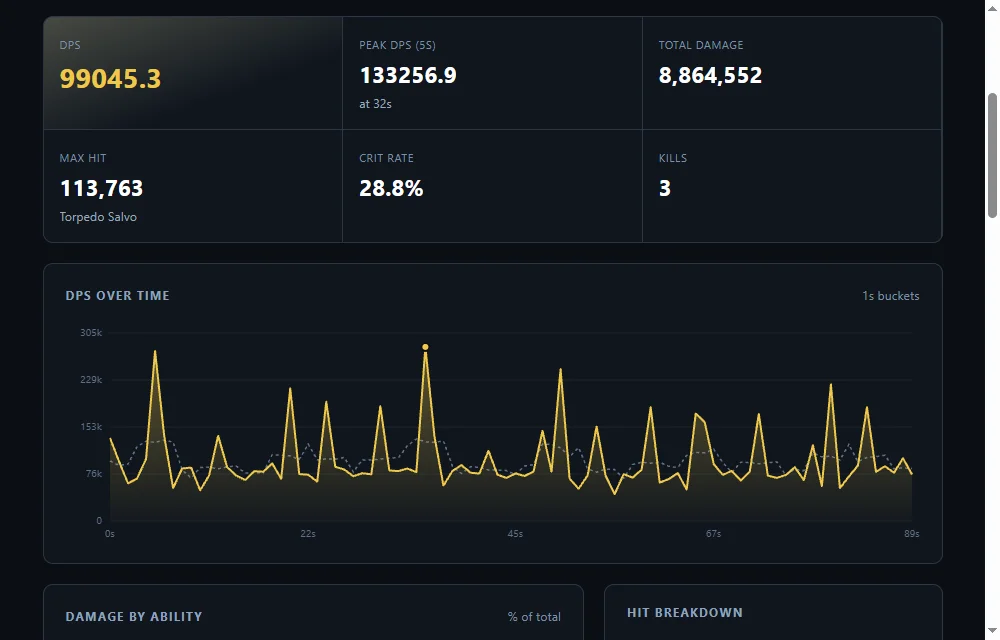
The six cards across the top answer different questions. DPS is your total damage divided by your own active time, from your first hit to your last. In the sample, 8,864,552 total damage divided by about 89.5 active seconds gives 99,045 DPS. Dividing by the whole 91 second fight would give a slightly lower 97,413, which is why the reader uses your active time: joining late or finishing a target early should not drag your number down.
Peak DPS (5s) is your best five second stretch. The sample's peak of 133,257 is about 1.35 times its sustained average, which tells you the fight had real burst windows. When you compare two runs, compare the sustained number first. Peak is the more fragile of the two.
Max Hit names the single biggest hit and the ability that landed it, and Crit Rate is the share of your attacks that were critical hits. Kills counts the killing blows credited to you.
Reading the breakdowns
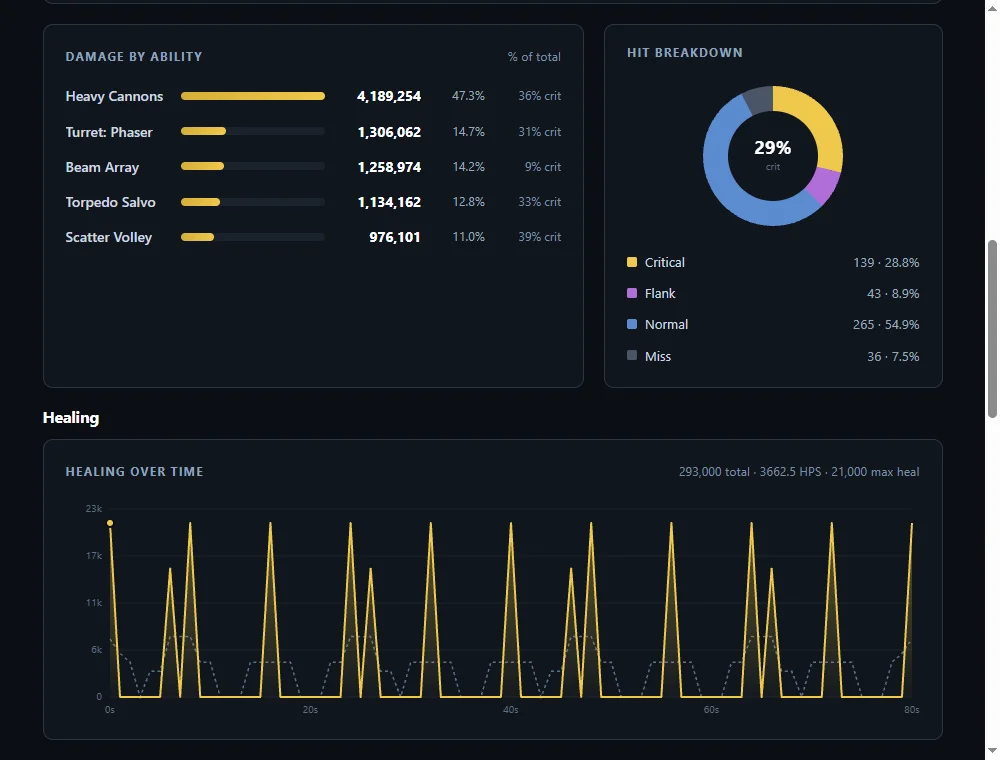
Scroll down and the page splits your damage by ability. This is the panel that usually teaches you the most. In the sample, Heavy Cannons account for 4,189,254 of the 8,864,552 total, which is 47.3%, so nearly half of that build's damage rides on one ability. Beam Array supplies 14.2% of the damage but only lands 9% crits, while every other ability sits between 31% and 39%. That does not prove anything is wrong, because there may be a simple reason, but it is a specific, checkable difference to chase.
The same page also shows healing you gave and damage you took. In the sample you took 755,960 damage across 45 hits and healed 293,000, so healing covered about 38.8% of what came in. When you change something defensive, those are the numbers that should move.
Getting logs you can compare
A single log is a snapshot. The value comes from comparing two of them, and that only works if the fights are alike. Use the same mission and the same difficulty, record the whole run, and change one thing between logs, whether that is a trait, a console, or a bridge officer ability. If you change three things and your DPS moves, you will not know which one did it.
Once you have a habit of recording, the next step is deciding what to change. Start with Using the Build Planner to Improve Your DPS, and use How to Read Your Combat Log Results as a reference for every stat and chart on the page.